Active Directory & DNS
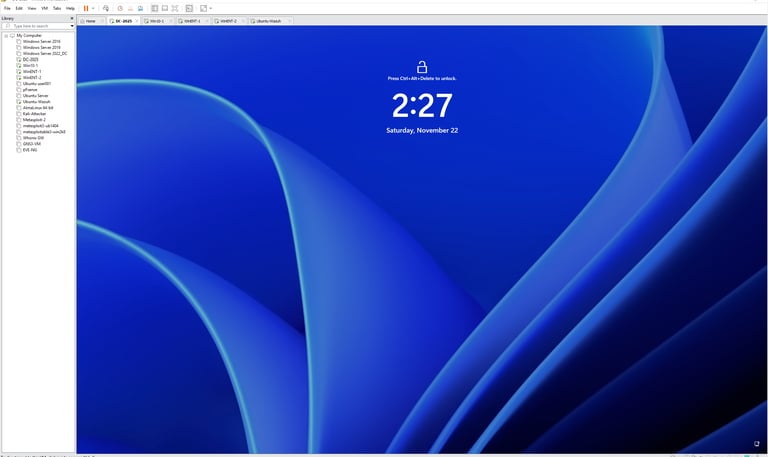
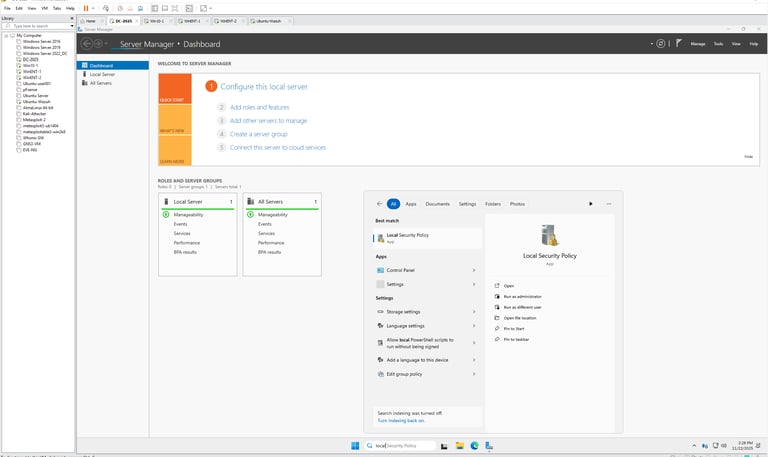
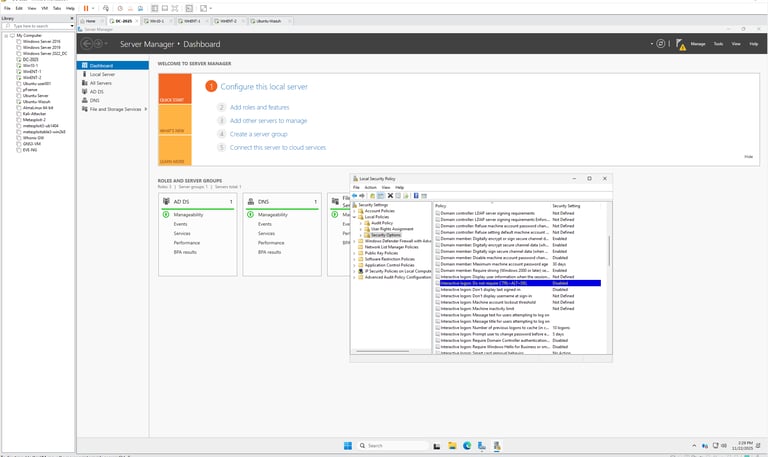
During set up several reboots will be required for convenience CTRL+ ALT +DEL can be disabled
Local Security Policy → Local Policies → Security Options
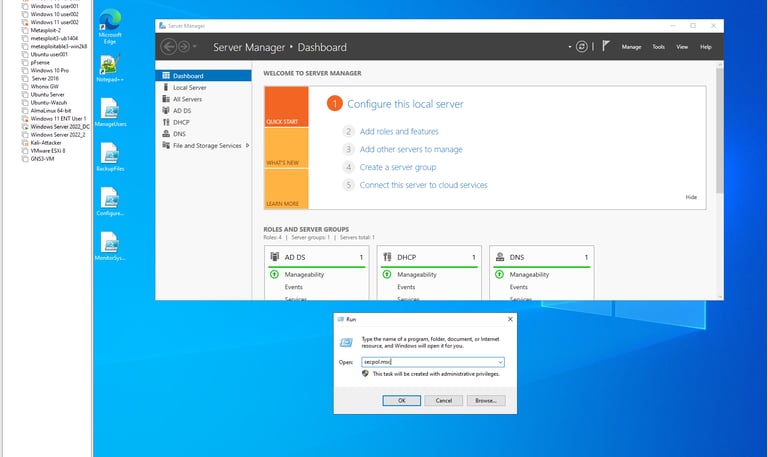
Open Run (Win + R) → type secpol.msc → press Enter.
Navigate to Local Policies > Security Options.
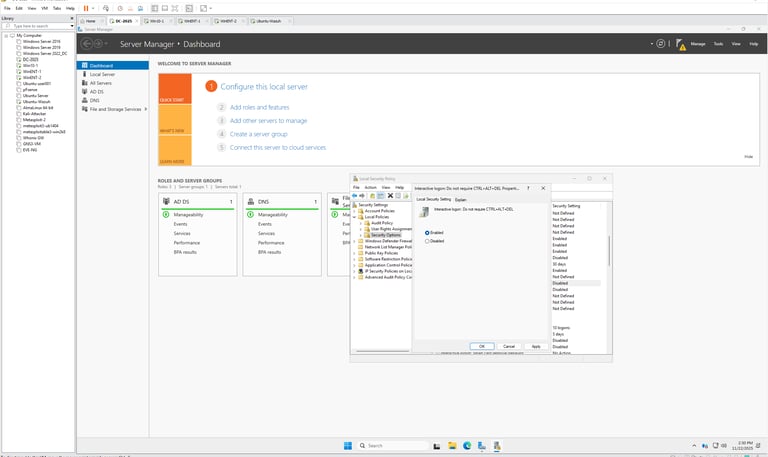
Locate Interactive logon: Do not require CTRL+ALT+DEL.
Double-click the policy.
Select Enabled to disable the requirement.
Click Apply → OK.
Restart or sign out of the system.
Confirm login screen does not require pressing CTRL+ALT+DEL.
Security Considerations
Disabling CTRL+ALT+DEL reduces protection against credential spoofing.
Only disable in controlled environments.
Re-enable in production systems.
Temporarily Disable Local Security Policy (OPTIONAL)
Turn Off Windows Firewall (Temporarily)
Press to open Settings.
Go to Privacy & Security > Windows Security.
Click Firewall & network protection.
You’ll see three network profiles:
Domain network
Private network
Public network
Select the active network (usually Private if you’re at home/lab).
Toggle Microsoft Defender Firewall → Off.
Confirm the change.
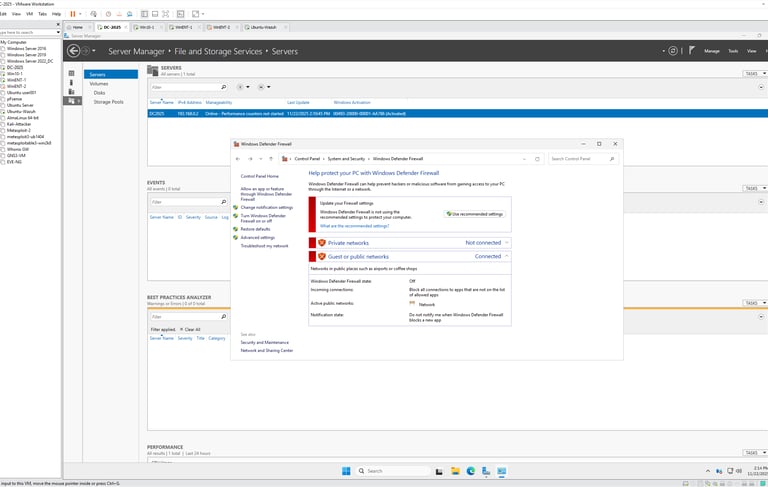
The network is configured with Windows Server 2025 (DC), three Windows clients, and one Ubuntu client configured to use DHCP.
Computer Names Give Unique Identification in Active Directory (AD):
Each computer object in AD is tied to its name. If two machines share the same name, authentication and trust relationships can break, preventing users from logging in securely.
DNS and Network Resolution:
Computer names are registered in DNS when a computer joins a domain. Duplicate names can cause name resolution errors, meaning users or applications may connect to the wrong machine or fail to connect at all.
Group Policy Application:
Group Policy Objects (GPOs) are applied to computers based on their AD identity. If names are inconsistent, policies may not be applied correctly, leading to misconfigured systems.
Security and Certificates:
VPNs, Kerberos tickets, and certificates are tied to the computer name. If the name is wrong or duplicated, authentication may fail, leaving the system unable to connect securely
Set up Computer Name:
Open Settings
Press to open the Settings app.
Navigate to System > About
In the left sidebar, click System.
Scroll down and select About.
Rename Your PC
Under Device specifications, click Rename this PC.
Enter the new computer name (avoid spaces and special characters).
Example: or .
Restart to Apply
Click Next, then Restart now (or Restart later).
The new name takes effect after reboot.
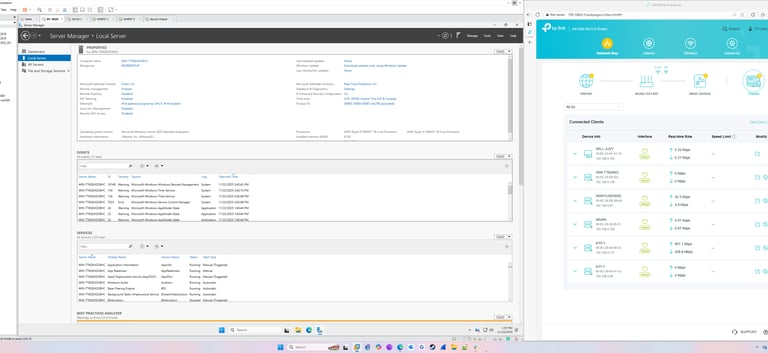
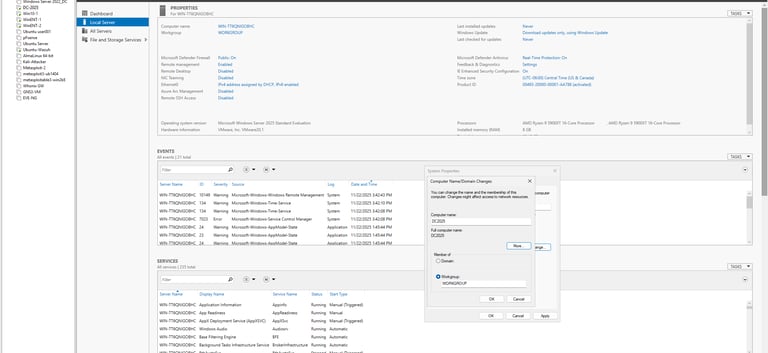
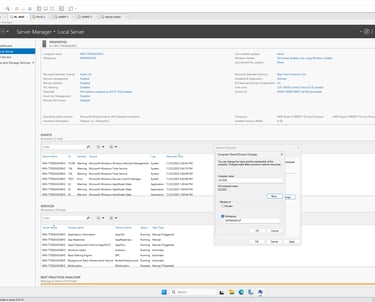
Confirm Computer Name Change & Set Static IP
Press to open Settings.
Go to System > About.
Under Device specifications, check Device name.
It should display the new name you set.
Set a Static IP Address
Press to open Settings.
Go to Network & Internet.
Select Ethernet (or Wi-Fi, depending on your connection).
Click on your active network adapter.
Scroll down to IP assignment → click Edit.
Change from Automatic (DHCP) to Manual.
Toggle IPv4 ON and enter:
IP address (e.g., 192.168.0.2)
Subnet mask (e.g., 255.255.255.0)
Default gateway (your router, e.g., )
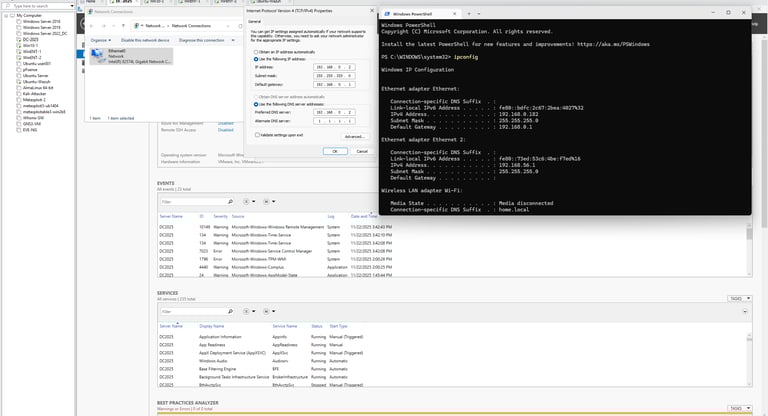
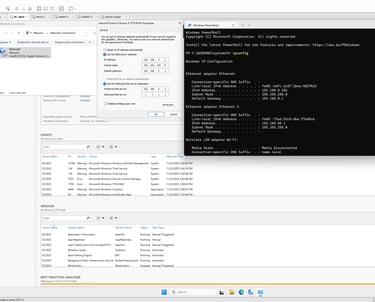
Preferred DNS (IP is same as the static ip set for the server reference image to left )
Alternate DNS (e.g., )
Click Save.
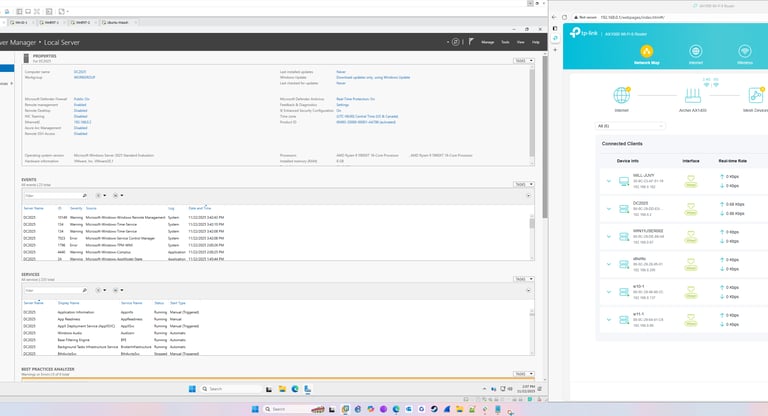
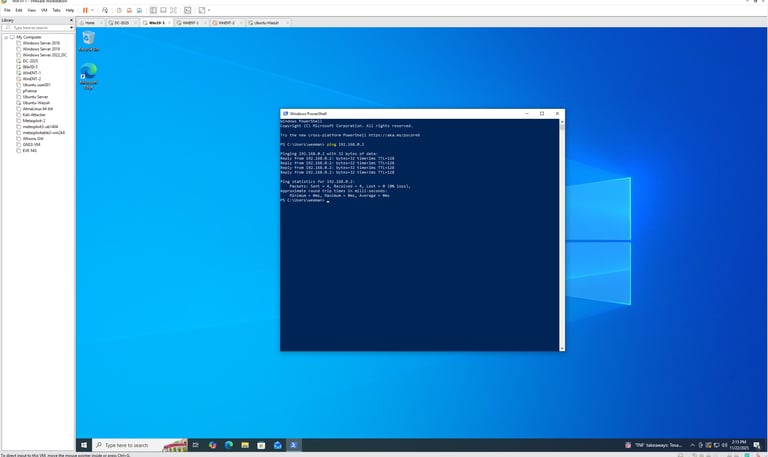
Confirm Communication Between Clients and Server
Using ipconfig check:
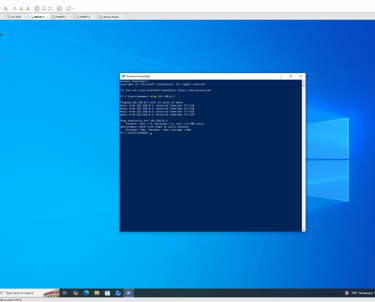
[ ] Client can ping server by IP
[ ] Server can ping client by IP
[ ] Gateway responds to ping
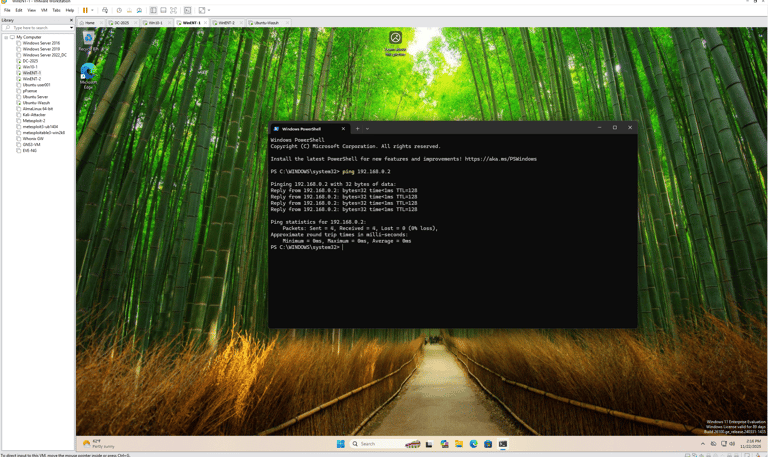
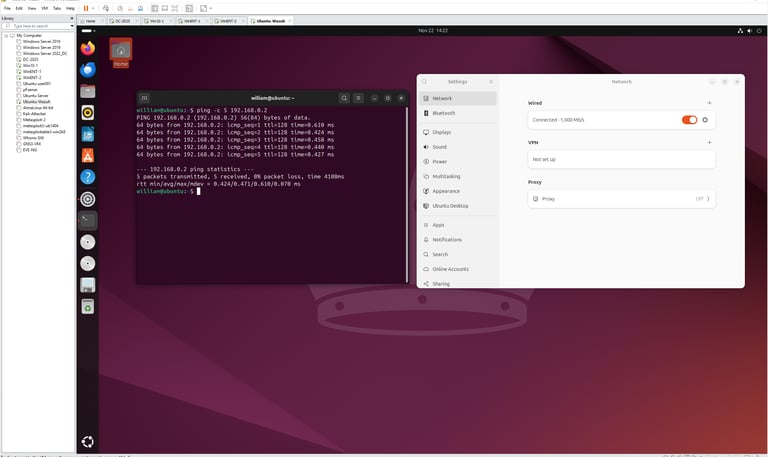
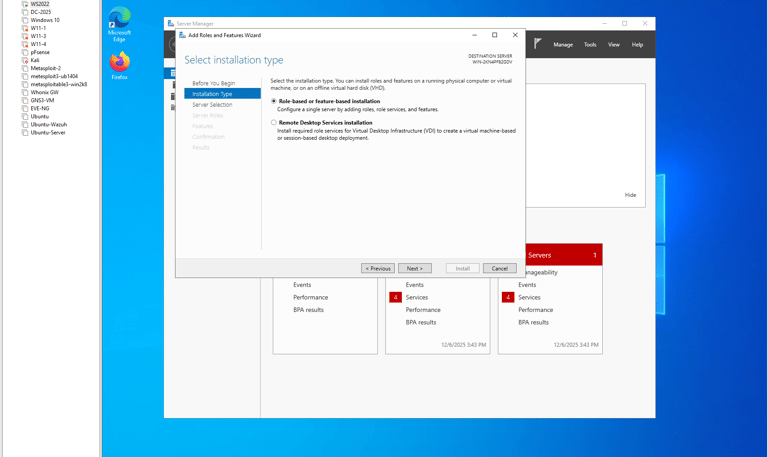
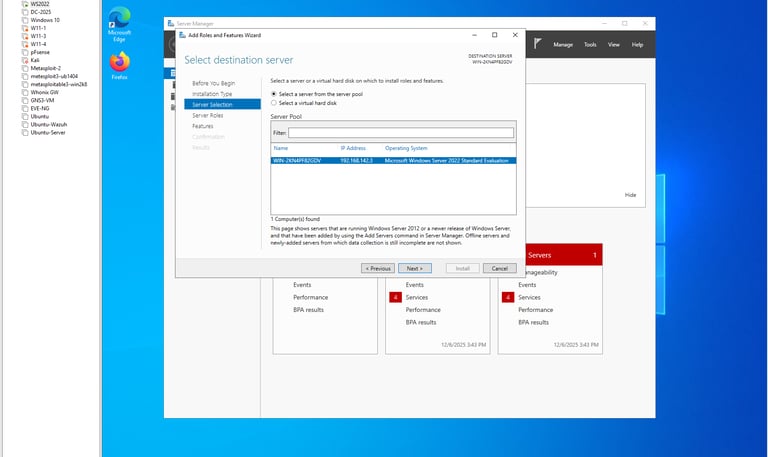
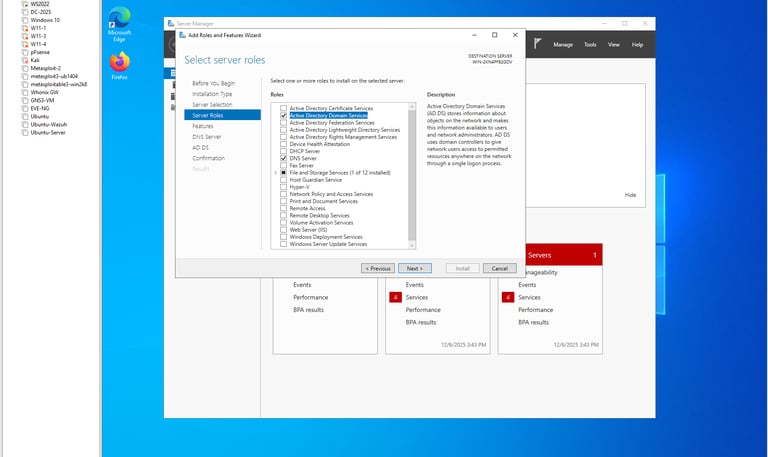
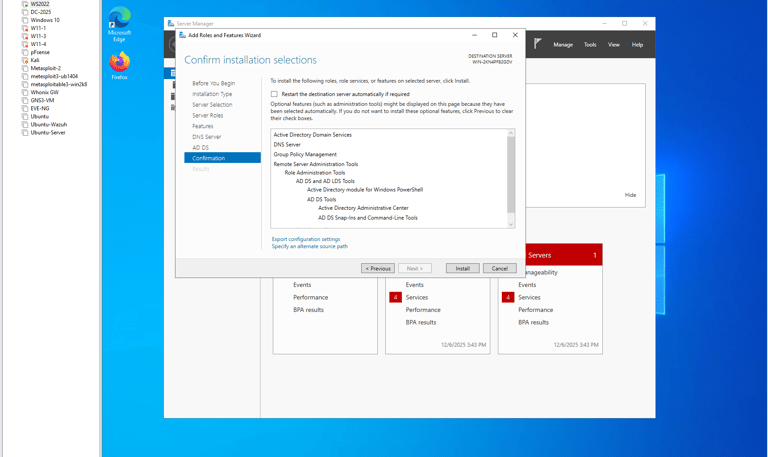
Active Directory domain services setup on Windows Server 2025
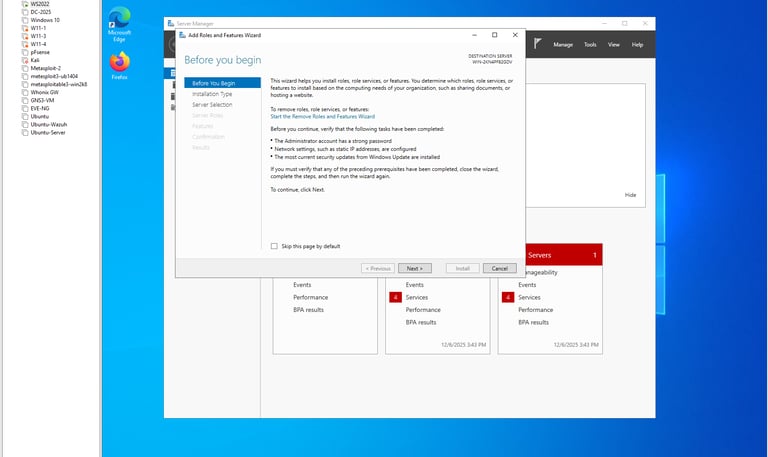
Install Active Directory & DNS
Prerequisites and preparation
Supported OS: Windows Server 2025, with latest updates installed.
Network: Static IPv4 set on the server and working DNS plan
(the DC will host DNS).
Server name: Set a final hostname before promotion (e.g., LAB-DC01).
Credentials: Local admin on the server and a strong DSRM password for AD restore
Static IP: Set a static IP and point DNS to itself after promotion.
Time sync: Ensure correct time; AD depends on Kerberos time integrity.
Firewall: Allow AD DS and DNS or temporarily disable during initial configuration.
Project title
This project aims to develop a user-friendly mobile application that enhances productivity and organization. Through intuitive design and seamless functionality, users can efficiently manage tasks, set reminders, and collaborate with team members.